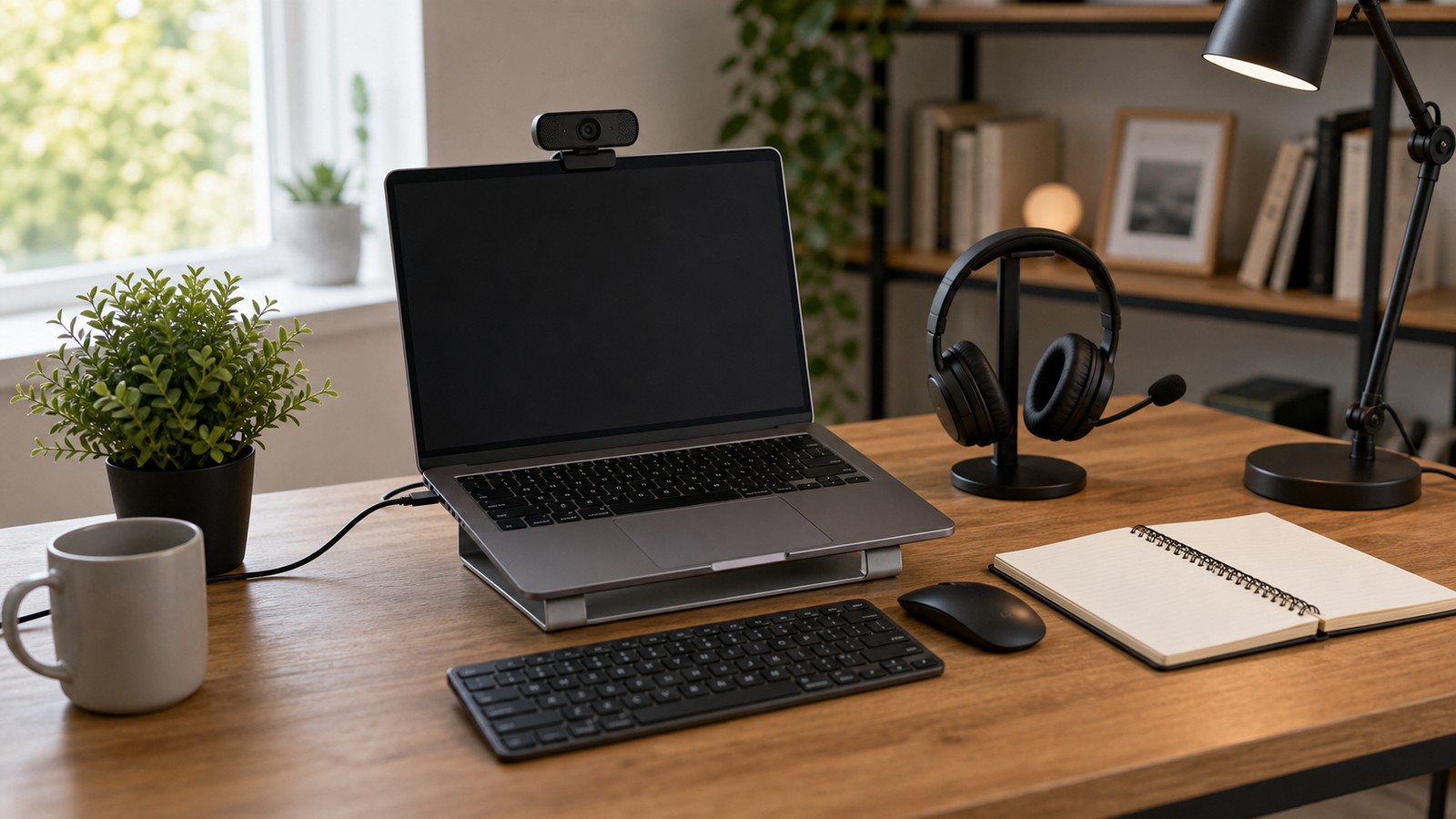
Touchscreen Laptop vs Traditional Laptop: Pros and Cons
A touchscreen laptop is not automatically better than a traditional laptop. It is better only when direct screen input improves how the user works, studies, draws, presents, reads, or navigates. Touchscreens can make a laptop more flexible, especially in convertible designs, but they can also add cost, weight, glare, battery drain, and repair complexity. The right choice depends on the user’s daily workflow.
A: Only if it solves a real problem or improves support, security, or performance enough to justify the cost.
A: Specs matter, but comfort, reliability, software, warranty, and compatibility often matter just as much.
A: Start with your workload, set a budget, check reviews, and include accessories or subscriptions.
A: It helps with syncing and backup, but important files should still have a recovery plan.
A: Use updates, strong passwords, multi-factor authentication, and regular backups.
A: No. The best value is the product that fits the task without unnecessary complexity.
A: It depends on the category, but update support and repairability are strong clues.
A: Avoid buying into a system before checking compatibility and long-term costs.
A: Reviewers test different workloads, priorities, prices, and expectations.
A: Whether the technology makes daily use easier, safer, clearer, or more reliable.
Touch Is Best When the Screen Becomes a Workspace
Touch input is useful for drawing, marking up PDFs, signing forms, zooming maps, scrolling recipes, teaching from slides, and navigating visual apps. If the user mostly types, uses spreadsheets, writes papers, codes, or works with a mouse at a desk, touch may not add much value.
Pen Support Changes the Value
A touchscreen with accurate pen support can be excellent for students, designers, architects, teachers, note-takers, and anyone who marks up visual material. Pen quality matters. Latency, pressure sensitivity, palm rejection, storage, charging, and app support determine whether the experience feels natural.
Convertible Laptops Add Flexibility
Two-in-one laptops can fold into tent, stand, or tablet modes. That can help with presentations, reading, drawing, streaming, and cramped travel spaces. The tradeoff is that convertibles may be heavier than tablets and more complex than standard laptops. Hinges and screens need to be durable.
Traditional Laptops Still Win for Focused Work
A traditional laptop often gives better value for typing, office work, coding, browsing, and general productivity. Without touch hardware, the device may be lighter, cheaper, less reflective, and slightly better on battery life.
Battery Life Can Be Affected
Touch panels and brighter glossy displays can use more power than non-touch alternatives, though the difference varies by model. Buyers should check real-world battery tests rather than assuming the touchscreen version lasts as long as the traditional version.
Screen Finish Matters
Many touchscreens are glossy, which can make colors pop but also increases reflections in classrooms, offices, airplanes, and bright rooms. Users who read or write for long sessions may prefer a matte non-touch display unless pen input is important.
Durability and Repair Costs Are Different
Touchscreens include digitizers and often more complex display assemblies. If the screen cracks, repairs can cost more than a standard panel. Students and travelers should consider cases, warranties, and accidental damage coverage if choosing a touchscreen model.
Software Support Should Guide the Decision
Touch is only useful if the apps respond well. Drawing apps, note apps, whiteboards, design tools, and PDF editors can make touch valuable. Some desktop software still works better with keyboard, trackpad, or mouse. Check the actual apps used every week.
Price Differences Add Up
A touchscreen version of the same laptop may cost more. That money might be better spent on extra memory, more storage, a better display, or longer warranty coverage. The upgrade is worth it when touch is used regularly. It is less worthwhile when it becomes a feature people try once and forget.
The Right Choice Is Habit-Based
Choose a touchscreen laptop if drawing, annotating, presenting, reading, or hands-on navigation is part of the routine. Choose a traditional laptop if typing, performance, battery life, lower cost, and simplicity matter more than direct screen interaction.
What to Check Before You Commit
Before relying on touchscreen laptops are worth it when touch, pen input, tablet modes, and visual work match the user’s routine, check the practical requirements: hardware, software, accounts, subscriptions, setup time, security settings, and the level of technical comfort required. A tool that looks simple in a demo can feel very different when it has to fit a real home, office, school, or small business.
The best decision comes from matching the technology to the user rather than forcing the user to adapt to the technology. Think about who will maintain it, who will troubleshoot it, and whether the benefit is still clear after the excitement fades.
Compatibility Can Decide the Experience
Technology rarely operates alone. Devices, apps, operating systems, browsers, accessories, accounts, file formats, and networks all have to work together. Compatibility problems are one of the fastest ways for a good idea to become frustrating. A careful buyer or user should check platform support, update policies, export options, and whether the tool works with what they already own. The smoother the fit, the more likely the technology becomes useful instead of becoming another isolated gadget or app.
Security Should Be Built In Early
Every connected technology brings some security responsibility. Strong passwords, multi-factor authentication, software updates, trusted downloads, careful permissions, and backup plans matter even for tools that seem ordinary. Security is easier when it is part of the setup from the beginning. Waiting until something goes wrong can make recovery harder, especially when accounts, personal files, financial information, or work data are involved.
Privacy Deserves a Plain-Language Review
Many modern tools collect data about behavior, location, usage, voice, images, files, or user choices. That data can improve features, but it can also create exposure if settings are unclear or policies change. A practical privacy review asks what is collected, where it is stored, who can access it, whether it can be deleted, and whether the tool still works if optional tracking is turned off. People should not have to trade unnecessary information for basic convenience.
Cost Is More Than the Purchase Price
The sticker price rarely tells the whole story. Subscriptions, accessories, cloud storage, replacement parts, electricity, repairs, warranties, training time, and switching costs can all change the real value. A smart technology decision includes the first year of ownership and the likely cost after that. If a product becomes expensive only after the user is locked in, the initial bargain may not be a bargain at all.
Maintenance Keeps Technology Useful
Good technology still needs care. Updates must be installed, files need organization, batteries wear down, settings drift, accounts change, and hardware eventually ages. Maintenance does not have to be complicated, but it should be expected. A simple routine of updates, backups, password review, cleaning, and occasional performance checks can extend the useful life of almost any technology.
Accessibility Makes Better Products
Accessible technology helps more people use the same tool comfortably. Good contrast, readable text, keyboard support, captions, voice control, adjustable notifications, and clear error messages are not niche features. They also improve the experience for everyone. A product that is easier to see, hear, understand, repair, and control is usually a better product, even for users who do not think of themselves as needing accessibility support.
When to Upgrade and When to Wait
New technology creates pressure to upgrade, but the best time to buy is not always the launch window. Early products can be expensive, buggy, limited, or dependent on standards that are still settling. Waiting can bring better prices, stronger reviews, software updates, and clearer compatibility. Upgrade when the new tool solves a real problem, not only because it feels newer than what already works.
The Human Factor Still Matters
The success of touchscreen laptops are worth it when touch, pen input, tablet modes, and visual work match the user’s routine depends on people as much as specs. Training, habits, patience, trust, and clear expectations shape whether a tool becomes part of daily life. A technically powerful system can fail if users do not understand it or do not want it. A simpler system can succeed when it fits the way people already think, work, learn, and communicate.
A Practical Way to Judge the Technology
The easiest way to judge touchscreen laptops are worth it when touch, pen input, tablet modes, and visual work match the user’s routine is to ask what changes after adoption. Does it save time, reduce risk, improve quality, make information clearer, or open a capability that was not realistic before? If the answer is vague, wait. Strong technology does not need inflated promises. It earns trust by working consistently, explaining its limits, and making life or work measurably easier.
Setup Quality Shapes Long-Term Results
Many technology problems begin during setup. Rushed configuration can lead to weak passwords, messy accounts, confusing names, missing backups, disabled updates, or devices placed where they perform poorly. A careful setup does not need to be slow, but it should be deliberate. Label devices clearly, write down recovery methods, check update settings, and confirm that the most important features work before depending on the system.
Troubleshooting Should Be Part of the Plan
Every technology eventually needs troubleshooting. Apps freeze, networks drop, devices stop syncing, storage fills up, and settings change after updates. The best tools make recovery understandable. Clear error messages, searchable support pages, export options, reset steps, and human support channels can matter as much as headline features when something breaks.
Performance Claims Need Context
Speed, battery life, storage, response time, and reliability often depend on real conditions. A product may perform well in ideal tests but slow down with older hardware, weak networks, large files, or heavy multitasking. When comparing options, look for reviews and examples that resemble your actual use. The right question is not only how fast the tool can be, but how consistently it performs under ordinary pressure.
Ownership and Exit Options Matter
Modern technology often depends on accounts, cloud services, app stores, and subscriptions. That can be convenient, but it can also make users dependent on a provider’s prices, policies, and long-term support. A healthy setup includes exit options. Users should know whether they can export files, move data, switch platforms, keep local copies, or continue using the product if a service changes.
A Good Upgrade Should Reduce Friction
The simplest test is whether the technology removes more friction than it creates. A new system should make a task clearer, faster, safer, more reliable, or more accessible. If it adds more alerts, accounts, cables, chargers, settings, or confusion than the old method, it may not be an upgrade yet. Mature technology earns its place by becoming easier to live with over time.
Documentation Saves Future Time
A few notes can prevent future headaches. Record important account names, warranty details, device models, setup choices, backup locations, and any settings that were changed from the default. Documentation is especially useful when technology is shared by a household or team. If only one person understands the setup, every small problem becomes dependent on that person being available.
The Best Version Feels Useful After the Novelty Fades
New technology often feels exciting during the first week. The better test comes later, when the product is no longer new and the user simply expects it to work. If touchscreen laptops are worth it when touch, pen input, tablet modes, and visual work match the user’s routine still saves time, reduces stress, improves quality, or makes a task easier after the novelty fades, it is probably serving a real purpose rather than just adding another layer of complexity.
Bottom Line on Touchscreen vs Traditional Laptops
Touchscreen laptops are best for users who will actually touch, draw, annotate, or present on the screen. Traditional laptops remain the better value for many people who mostly type, browse, code, write, and work at a desk.
Final Buying Perspective
The safest technology choice is the one that still makes sense after the comparison chart is closed. A product should fit the space, the budget, the user, the maintenance plan, and the software or service ecosystem around it. That practical view keeps the decision grounded. Strong technology does not have to be perfect, but it should make the next few years easier instead of adding avoidable complexity.
What Makes the Choice Hold Up
The best technology choice is the one that continues to feel useful after setup, updates, accessories, and daily habits are included. A strong option should reduce friction, protect important data, and remain understandable when something needs to be changed later. That long-term view matters because technology is not only purchased once. It is used repeatedly, maintained over time, and judged by whether it keeps helping after the first impression fades.