How to Install Linux on Any PC (Beginner Guide)
Linux is a free and flexible operating system that can run on laptops, desktops, older PCs, mini PCs, and custom-built computers. Installing it is much easier than many beginners expect, but preparation matters. The safest path is to choose a beginner-friendly distribution, back up important files, create a bootable USB drive, test the live environment, and understand whether you want Linux to replace Windows or run beside it.
A: It can if you choose the full erase option, so back up important files before starting.
A: Yes, many distros support dual booting so you can choose which system to start.
A: Linux Mint, Ubuntu, and Zorin OS are among the most beginner-friendly options.
A: No, most beginner distros use a graphical installer that guides you step by step.
A: At least 8GB is recommended, though 16GB is even more comfortable.
A: Check the boot menu key, BIOS or UEFI settings, and confirm the USB was created correctly.
A: Yes, lightweight distros are often an excellent way to revive older hardware.
A: Most Linux distributions are free to download, install, and use.
A: Yes, many distros offer a live mode so you can try the system first.
A: Update the system, connect to the internet, and install the apps you plan to use most.
Choose a Beginner-Friendly Distribution
A Linux distribution is a complete operating system built around the Linux kernel, desktop interface, software tools, and update system. Popular beginner choices include Ubuntu, Linux Mint, Fedora, and Zorin OS. Linux Mint is often comfortable for Windows users, Ubuntu has broad support, Fedora offers newer software, and Zorin focuses on a polished desktop. The best choice is the one with good hardware support and clear documentation.
Back Up Everything First
Before installing any operating system, copy important files to an external drive or cloud storage. That includes documents, photos, browser bookmarks, license keys, work files, and anything difficult to replace. Backups are not optional. Even a careful install can go wrong if the wrong drive is selected, a partition is erased, or the computer loses power during setup.
Download the ISO from the Official Site
Linux installers are usually downloaded as ISO files. Always use the official distribution website, not a random mirror or bundled download page. Some distributions provide checksums or signatures so users can verify the download. Beginners may skip this step, but it is a good habit when installing system software.
Create a Bootable USB Drive
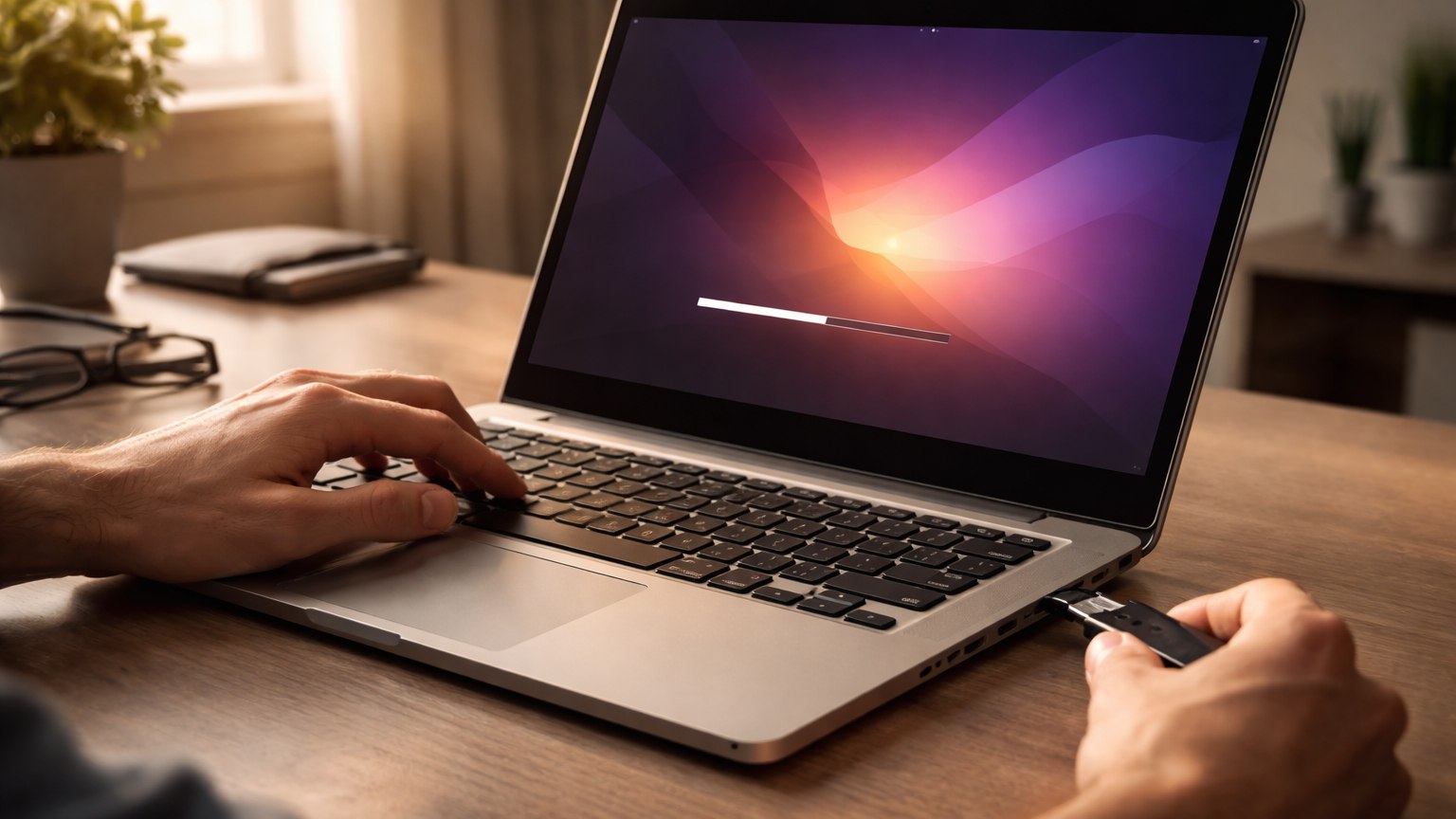
A tool such as Rufus, balenaEtcher, or Ventoy can write the ISO file to a USB drive. The USB drive becomes the installer that starts before the current operating system. This process erases the USB drive, so use one that does not contain important files. An 8 GB or larger drive is usually enough for most distributions.
Boot From the USB Installer
Restart the PC and open the boot menu, often with a key such as F12, F11, Esc, or Del depending on the manufacturer. Choose the USB drive from the boot list. Some computers may require changing Secure Boot settings or selecting UEFI mode. If the installer does not appear, check the distribution’s help page for that specific hardware brand.
Test Linux Before Installing
Most beginner distributions offer a live mode that runs from the USB drive without changing the computer. Use this mode to test Wi-Fi, sound, keyboard, trackpad, display brightness, Bluetooth, and sleep behavior. If something important does not work in live mode, research the issue before installing. Hardware compatibility is usually good, but laptops with unusual chips can need extra drivers.
Pick Replace or Dual Boot Carefully
Replacing the current operating system is simpler but removes the old setup. Dual booting keeps Windows and Linux on the same machine, letting the user choose at startup. Dual booting requires more attention to disk space and partitions. Beginners should read each installer screen slowly and avoid manual partitioning unless they understand the layout.
Install Updates and Drivers After Setup
After Linux starts from the internal drive, run the update manager. Updates improve security, hardware support, browser performance, and software stability. Some systems also need proprietary graphics or Wi-Fi drivers. Many beginner distributions provide a driver manager that handles this without terminal commands.
Learn the Software Center First
Linux distributions usually include an app store or software center for browsers, office tools, media players, coding tools, graphics apps, and utilities. Using the software center is safer than downloading random installer files. It also keeps updates organized through the system’s package manager.
Keep a Recovery Plan
New Linux users should keep the installer USB, backup drive, and notes about what they changed. That makes recovery easier if the boot menu, drivers, or updates cause problems. Linux rewards curiosity, but system changes should be made one at a time. If something breaks, it is easier to fix when the last change is known.
What to Check Before You Commit
Before relying on installing linux on a pc, check the practical requirements: hardware, software, accounts, subscriptions, setup time, security settings, and the level of technical comfort required. A tool that looks simple in a demo can feel very different when it has to fit a real home, office, school, or small business.
The best decision comes from matching the technology to the user rather than forcing the user to adapt to the technology. Think about who will maintain it, who will troubleshoot it, and whether the benefit is still clear after the excitement fades.
Compatibility Can Decide the Experience
Technology rarely operates alone. Devices, apps, operating systems, browsers, accessories, accounts, file formats, and networks all have to work together. Compatibility problems are one of the fastest ways for a good idea to become frustrating. A careful buyer or user should check platform support, update policies, export options, and whether the tool works with what they already own. The smoother the fit, the more likely the technology becomes useful instead of becoming another isolated gadget or app.
Security Should Be Built In Early
Every connected technology brings some security responsibility. Strong passwords, multi-factor authentication, software updates, trusted downloads, careful permissions, and backup plans matter even for tools that seem ordinary. Security is easier when it is part of the setup from the beginning. Waiting until something goes wrong can make recovery harder, especially when accounts, personal files, financial information, or work data are involved.
Privacy Deserves a Plain-Language Review
Many modern tools collect data about behavior, location, usage, voice, images, files, or user choices. That data can improve features, but it can also create exposure if settings are unclear or policies change. A practical privacy review asks what is collected, where it is stored, who can access it, whether it can be deleted, and whether the tool still works if optional tracking is turned off. People should not have to trade unnecessary information for basic convenience.
Cost Is More Than the Purchase Price
The sticker price rarely tells the whole story. Subscriptions, accessories, cloud storage, replacement parts, electricity, repairs, warranties, training time, and switching costs can all change the real value. A smart technology decision includes the first year of ownership and the likely cost after that. If a product becomes expensive only after the user is locked in, the initial bargain may not be a bargain at all.
Maintenance Keeps Technology Useful
Good technology still needs care. Updates must be installed, files need organization, batteries wear down, settings drift, accounts change, and hardware eventually ages. Maintenance does not have to be complicated, but it should be expected. A simple routine of updates, backups, password review, cleaning, and occasional performance checks can extend the useful life of almost any technology.
Accessibility Makes Better Products
Accessible technology helps more people use the same tool comfortably. Good contrast, readable text, keyboard support, captions, voice control, adjustable notifications, and clear error messages are not niche features. They also improve the experience for everyone. A product that is easier to see, hear, understand, repair, and control is usually a better product, even for users who do not think of themselves as needing accessibility support.
When to Upgrade and When to Wait
New technology creates pressure to upgrade, but the best time to buy is not always the launch window. Early products can be expensive, buggy, limited, or dependent on standards that are still settling. Waiting can bring better prices, stronger reviews, software updates, and clearer compatibility. Upgrade when the new tool solves a real problem, not only because it feels newer than what already works.
The Human Factor Still Matters
The success of installing linux on a pc depends on people as much as specs. Training, habits, patience, trust, and clear expectations shape whether a tool becomes part of daily life. A technically powerful system can fail if users do not understand it or do not want it. A simpler system can succeed when it fits the way people already think, work, learn, and communicate.
A Practical Way to Judge the Technology
The easiest way to judge installing linux on a pc is to ask what changes after adoption. Does it save time, reduce risk, improve quality, make information clearer, or open a capability that was not realistic before? If the answer is vague, wait. Strong technology does not need inflated promises. It earns trust by working consistently, explaining its limits, and making life or work measurably easier.
Setup Quality Shapes Long-Term Results
Many technology problems begin during setup. Rushed configuration can lead to weak passwords, messy accounts, confusing names, missing backups, disabled updates, or devices placed where they perform poorly. A careful setup does not need to be slow, but it should be deliberate. Label devices clearly, write down recovery methods, check update settings, and confirm that the most important features work before depending on the system.
Troubleshooting Should Be Part of the Plan
Every technology eventually needs troubleshooting. Apps freeze, networks drop, devices stop syncing, storage fills up, and settings change after updates. The best tools make recovery understandable. Clear error messages, searchable support pages, export options, reset steps, and human support channels can matter as much as headline features when something breaks.
Performance Claims Need Context
Speed, battery life, storage, response time, and reliability often depend on real conditions. A product may perform well in ideal tests but slow down with older hardware, weak networks, large files, or heavy multitasking. When comparing options, look for reviews and examples that resemble your actual use. The right question is not only how fast the tool can be, but how consistently it performs under ordinary pressure.
Ownership and Exit Options Matter
Modern technology often depends on accounts, cloud services, app stores, and subscriptions. That can be convenient, but it can also make users dependent on a provider’s prices, policies, and long-term support. A healthy setup includes exit options. Users should know whether they can export files, move data, switch platforms, keep local copies, or continue using the product if a service changes.
A Good Upgrade Should Reduce Friction
The simplest test is whether the technology removes more friction than it creates. A new system should make a task clearer, faster, safer, more reliable, or more accessible. If it adds more alerts, accounts, cables, chargers, settings, or confusion than the old method, it may not be an upgrade yet. Mature technology earns its place by becoming easier to live with over time.
Documentation Saves Future Time
A few notes can prevent future headaches. Record important account names, warranty details, device models, setup choices, backup locations, and any settings that were changed from the default. Documentation is especially useful when technology is shared by a household or team. If only one person understands the setup, every small problem becomes dependent on that person being available.
The Best Version Feels Useful After the Novelty Fades
New technology often feels exciting during the first week. The better test comes later, when the product is no longer new and the user simply expects it to work. If installing linux on a pc still saves time, reduces stress, improves quality, or makes a task easier after the novelty fades, it is probably serving a real purpose rather than just adding another layer of complexity.
Bottom Line on Installing Linux
Installing Linux is very manageable when the process is prepared carefully: back up files, choose a friendly distribution, test the live USB, and read installer choices slowly. For most beginners, the goal is not to master every command on day one. It is to get a stable system running and learn step by step.