Best Desktop Computers for Students and Remote Learning
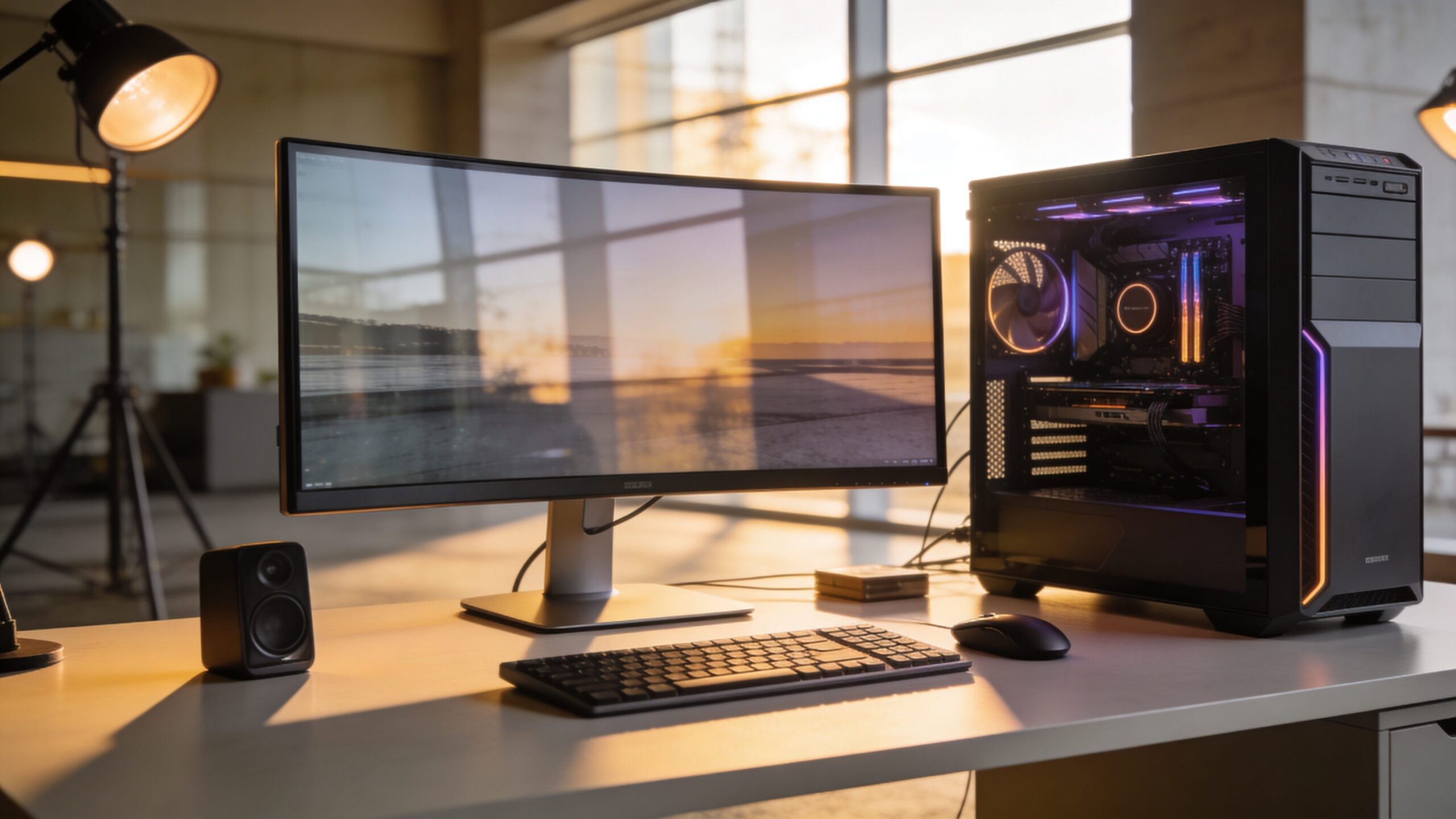
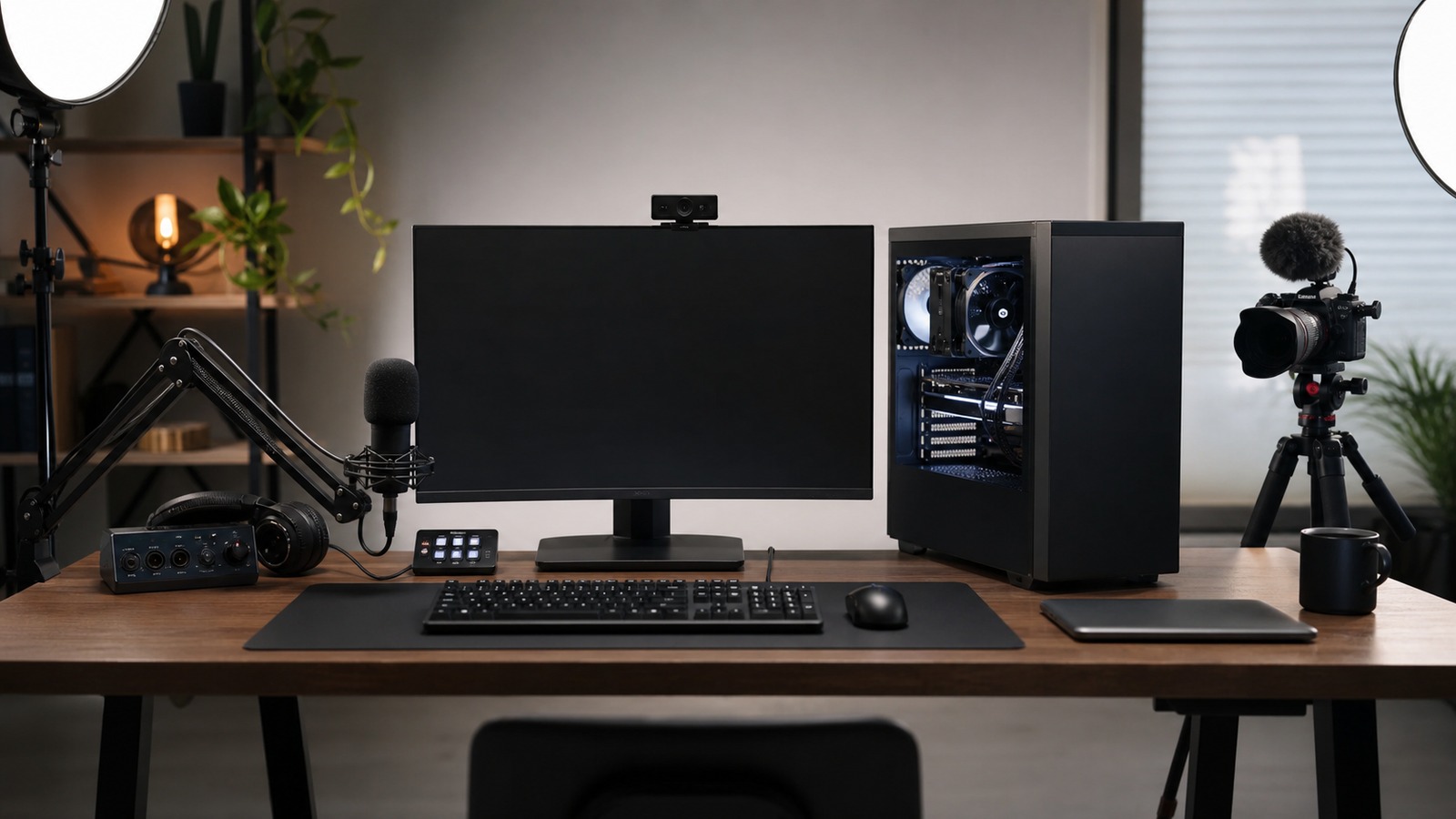
A desktop computer for students and remote learning should make schoolwork stable, comfortable, and affordable. Students may need video classes, research, writing, presentations, learning platforms, coding assignments, creative projects, printing, and family-shared access. The best desktop is not always the most powerful tower. It is the system that fits the student’s coursework, study space, budget, monitor needs, internet setup, and support options.
Reliability Comes First
A student desktop should start quickly, run learning platforms smoothly, and avoid constant troubleshooting. Remote learning depends on a computer that can join calls, open assignments, save work, and handle updates without derailing the day.
Performance Depends on Coursework
General schoolwork usually needs smooth browsing, documents, video calls, and light multitasking. Coding, design, video, engineering, music, and game development classes may need stronger processors, more memory, better graphics, or special software compatibility.
A Good Monitor Improves Study Comfort
Desktops let students use larger screens than most laptops, which helps with reading, research, split-screen writing, and long video classes. A clear monitor, comfortable brightness, and proper desk height can make long study sessions easier on the eyes and posture.
All-in-One Desktops Save Space
All-in-one computers combine the screen and computer in one unit, which can be useful in bedrooms, kitchens, shared rooms, and small apartments. They reduce cable clutter, but buyers should understand that upgrades and repairs may be more limited than with a tower.
Mini PCs Can Be Practical
Mini PCs offer compact size, low power use, and enough performance for many students. They pair well with an existing monitor, keyboard, and mouse, but users should check ports and upgrade options before buying.
Memory and Storage Should Not Be Too Tight
A student computer should have enough memory for browser tabs, video calls, documents, and learning apps at the same time. Fast solid-state storage helps the system feel responsive, while enough space prevents constant file cleanup.
Webcam, Microphone, and Speakers Matter
Remote learning depends on clear audio and video. Some desktops need an external webcam, headset, microphone, or speakers. Those accessories should be included in the budget because they affect the daily learning experience.
Shared Family Use Needs User Accounts
A desktop may serve more than one student or family member. Separate user accounts help protect files, bookmarks, settings, and assignments. Parental controls, browser profiles, and backup habits can make shared use less chaotic.
Support and Warranty Reduce Risk
Students need the computer working during assignments, exams, and meetings. Good warranty service and local repair options matter. A cheaper desktop can become expensive if it fails at the wrong moment and cannot be repaired quickly.
The Best Desktop Fits the Study Routine
A desktop is a strong fit when the student has a consistent study space and does not need to carry the computer to class. Choose based on coursework, screen comfort, reliability, accessory needs, and long-term support rather than raw specifications alone.
What to Check Before You Commit
Before relying on the best desktop computers for students and remote learning balance price, reliability, screen setup, performance, and support, check the practical requirements: hardware, software, accounts, subscriptions, setup time, security settings, and the level of technical comfort required. A tool that looks simple in a demo can feel very different when it has to fit a real home, office, school, or small business.
The best decision comes from matching the technology to the user rather than forcing the user to adapt to the technology. Think about who will maintain it, who will troubleshoot it, and whether the benefit is still clear after the excitement fades.
Compatibility Can Decide the Experience
Technology rarely operates alone. Devices, apps, operating systems, browsers, accessories, accounts, file formats, and networks all have to work together. Compatibility problems are one of the fastest ways for a good idea to become frustrating. A careful buyer or user should check platform support, update policies, export options, and whether the tool works with what they already own. The smoother the fit, the more likely the technology becomes useful instead of becoming another isolated gadget or app.
Security Should Be Built In Early
Every connected technology brings some security responsibility. Strong passwords, multi-factor authentication, software updates, trusted downloads, careful permissions, and backup plans matter even for tools that seem ordinary. Security is easier when it is part of the setup from the beginning. Waiting until something goes wrong can make recovery harder, especially when accounts, personal files, financial information, or work data are involved.
Privacy Deserves a Plain-Language Review
Many modern tools collect data about behavior, location, usage, voice, images, files, or user choices. That data can improve features, but it can also create exposure if settings are unclear or policies change. A practical privacy review asks what is collected, where it is stored, who can access it, whether it can be deleted, and whether the tool still works if optional tracking is turned off. People should not have to trade unnecessary information for basic convenience.
Cost Is More Than the Purchase Price
The sticker price rarely tells the whole story. Subscriptions, accessories, cloud storage, replacement parts, electricity, repairs, warranties, training time, and switching costs can all change the real value. A smart technology decision includes the first year of ownership and the likely cost after that. If a product becomes expensive only after the user is locked in, the initial bargain may not be a bargain at all.
Maintenance Keeps Technology Useful
Good technology still needs care. Updates must be installed, files need organization, batteries wear down, settings drift, accounts change, and hardware eventually ages. Maintenance does not have to be complicated, but it should be expected. A simple routine of updates, backups, password review, cleaning, and occasional performance checks can extend the useful life of almost any technology.
Accessibility Makes Better Products
Accessible technology helps more people use the same tool comfortably. Good contrast, readable text, keyboard support, captions, voice control, adjustable notifications, and clear error messages are not niche features. They also improve the experience for everyone. A product that is easier to see, hear, understand, repair, and control is usually a better product, even for users who do not think of themselves as needing accessibility support.
When to Upgrade and When to Wait
New technology creates pressure to upgrade, but the best time to buy is not always the launch window. Early products can be expensive, buggy, limited, or dependent on standards that are still settling. Waiting can bring better prices, stronger reviews, software updates, and clearer compatibility. Upgrade when the new tool solves a real problem, not only because it feels newer than what already works.
The Human Factor Still Matters
The success of the best desktop computers for students and remote learning balance price, reliability, screen setup, performance, and support depends on people as much as specs. Training, habits, patience, trust, and clear expectations shape whether a tool becomes part of daily life. A technically powerful system can fail if users do not understand it or do not want it. A simpler system can succeed when it fits the way people already think, work, learn, and communicate.
A Practical Way to Judge the Technology
The easiest way to judge the best desktop computers for students and remote learning balance price, reliability, screen setup, performance, and support is to ask what changes after adoption. Does it save time, reduce risk, improve quality, make information clearer, or open a capability that was not realistic before? If the answer is vague, wait. Strong technology does not need inflated promises. It earns trust by working consistently, explaining its limits, and making life or work measurably easier.
Setup Quality Shapes Long-Term Results
Many technology problems begin during setup. Rushed configuration can lead to weak passwords, messy accounts, confusing names, missing backups, disabled updates, or devices placed where they perform poorly. A careful setup does not need to be slow, but it should be deliberate. Label devices clearly, write down recovery methods, check update settings, and confirm that the most important features work before depending on the system.
Troubleshooting Should Be Part of the Plan
Every technology eventually needs troubleshooting. Apps freeze, networks drop, devices stop syncing, storage fills up, and settings change after updates. The best tools make recovery understandable. Clear error messages, searchable support pages, export options, reset steps, and human support channels can matter as much as headline features when something breaks.
Performance Claims Need Context
Speed, battery life, storage, response time, and reliability often depend on real conditions. A product may perform well in ideal tests but slow down with older hardware, weak networks, large files, or heavy multitasking. When comparing options, look for reviews and examples that resemble your actual use. The right question is not only how fast the tool can be, but how consistently it performs under ordinary pressure.
Ownership and Exit Options Matter
Modern technology often depends on accounts, cloud services, app stores, and subscriptions. That can be convenient, but it can also make users dependent on a provider’s prices, policies, and long-term support. A healthy setup includes exit options. Users should know whether they can export files, move data, switch platforms, keep local copies, or continue using the product if a service changes.
A Good Upgrade Should Reduce Friction
The simplest test is whether the technology removes more friction than it creates. A new system should make a task clearer, faster, safer, more reliable, or more accessible. If it adds more alerts, accounts, cables, chargers, settings, or confusion than the old method, it may not be an upgrade yet. Mature technology earns its place by becoming easier to live with over time.
Documentation Saves Future Time
A few notes can prevent future headaches. Record important account names, warranty details, device models, setup choices, backup locations, and any settings that were changed from the default. Documentation is especially useful when technology is shared by a household or team. If only one person understands the setup, every small problem becomes dependent on that person being available.
The Best Version Feels Useful After the Novelty Fades
New technology often feels exciting during the first week. The better test comes later, when the product is no longer new and the user simply expects it to work. If the best desktop computers for students and remote learning balance price, reliability, screen setup, performance, and support still saves time, reduces stress, improves quality, or makes a task easier after the novelty fades, it is probably serving a real purpose rather than just adding another layer of complexity.
Bottom Line on Student Desktops
The best desktop for students and remote learning is reliable, comfortable, affordable, and matched to coursework. A balanced system with a good display, enough memory, fast storage, clear audio, and dependable support can make schoolwork far easier to manage.
Final Buying Perspective
The safest technology choice is the one that still makes sense after the comparison chart is closed. A product should fit the space, the budget, the user, the maintenance plan, and the software or service ecosystem around it. That practical view keeps the decision grounded. Strong technology does not have to be perfect, but it should make the next few years easier instead of adding avoidable complexity.
What Makes the Choice Hold Up
The best technology choice is the one that continues to feel useful after setup, updates, accessories, and daily habits are included. A strong option should reduce friction, protect important data, and remain understandable when something needs to be changed later. That long-term view matters because technology is not only purchased once. It is used repeatedly, maintained over time, and judged by whether it keeps helping after the first impression fades.
Practical Adoption Check
Before committing to this technology choice, compare the promised benefit with the real adoption work. Setup, training, maintenance, security, support, and user habits all shape whether the idea succeeds after launch. A strong decision should still look sensible after those everyday details are included. That is the difference between technology that sounds impressive and technology that actually improves the way people work or live.